Generative Text Menu (GTM)
CharaChorder GTM [ >K<eyboard || >M<ouse || >C<hording || >D<isplay || >R<esources ]
The Generative Text Menu, known by its abbreviation as GTM, is an onboard, text based menu which can be accessed anywhere you type. Through it, we are able to modify CCOS settings including chording tolerances, mouse speeds, and realtime feedback, among other settings and features, without the need to use a software. It’s a core feature of CCOS that you will want to learn how to use to make the device your own.
You will notice that some settings have different press and release values. This is because the switches are read by the CCOS at two different moments in time: when they are pressed, and when they are released. We have designed CCOS to have configurable settings for each of those “events” separately, for maximum adjustability. Intuitively, each press setting, such as debounce press, will affect the way that the CCOS reads the switch at the time that the switch is pressed into any one direction. Conversely, release settings, such as release debounce, will change the way that the CCOS reads the switch at the exact moment that the switch is released, or un-pressed, from any one direction.
Note
Although you can configure your CCOS settings anywhere that you can type through the GTM, you can also edit them on the CharaChorder Device Manager.
Warning
Please note that updating your CCOS device might reset your GTM settings to default. Please make sure that you have a backup of your GTM settings before updating your CCOS device. For instructions on how to restore backed up files, visit the Restoring from a Backup section.
How to access the GTM
First, move your cursor into any area where you can type. For best results, you may want to choose a text area that doesn’t automatically format text since some of the keys that the GTM uses may trigger unwanted formatting. We recommend using a vanilla (basic) text editor such as Notepad. Please note, however, that Windows Notepad has been known to have issues with how the GTM is displayed on Windows 11 PCs.
Use the table below to find out how to trigger the GTM for your CCOS device. Please note that triggering the GTM will require a “chorded” action.
Device |
How to access |
|---|---|
CharaChorder One |
Chord both pinky keys north ( |
CharaChorder Lite |
Chord |
CharaChorder X |
Chord |
CharaChorder Engine |
Chord |
Available Menus
Menu |
Description |
|---|---|
Settings related to using your device in character entry |
|
Settings related to using your device as a mouse |
|
Settings related to chording on your device |
|
Settings related to your device version and other CCOS texts |
|
A menu of resources, mostly links |
Keyboard
Under this menu, you will be able to modify settings pertaining to how your CCOS device interacts with your computer.
Debounce Press
Path: GTM > Keyboard > Debounce Press
The debounce press setting refers to the time frame (measured in milliseconds) in which CCOS will filter out duplicate key activations on a press event. In other words, any duplicate activations within the given time frame will only be counted as one.
We should adjust this setting if we are having unintentional duplicate characters while typing. Increasing this value will lower the probability that unwanted duplicate characters will appear because it tells CCOS to wait longer before typing an additional character that’s assigned to the same switch-direction. However, having this setting set too high might also cause issues with CCOS not reading intentional double-presses, so it’s recommended to try different numbers in small increments. This setting should be used in connection with the debounce release setting.
You can find the default debounce press value of the different CharaChorder devices in the table below:
Device |
Default |
Min. Value |
Max. Value |
Increments |
|---|---|---|---|---|
CharaChorder One |
16 ms |
0 ms |
255 ms |
1 ms |
CharaChorder Lite |
16 ms |
0 ms |
255 ms |
1 ms |
CharaChorder X |
16 ms |
0 ms |
255 ms |
1 ms |
CharaChorder Two |
16 ms |
0 ms |
255 ms |
1 ms |
CharaChorder Engine |
16 ms |
0 ms |
255 ms |
1 ms |
Master Forge |
16 ms |
0 ms |
255 ms |
1 ms |
Debounce Release
Path: GTM > Keyboard > Debounce Release
The debounce release setting refers to the time frame (measured in milliseconds) in which CCOS will filter out duplicate key activations on a release event. In other words, any duplicate activations within the given time frame will only be counted as one.
We should adjust this setting if we are having unintentional duplicate characters while typing. Increasing this value will lower the probability that unwanted duplicate characters will appear because it tells CCOS to wait longer before typing an additional character that’s assigned to the same switch-direction. However, having this setting set too high might also cause issues with CCOS not reading intentional double-presses, so it’s recommended to try different numbers in small increments. This setting should be used in connection with the debounce press setting.
You can find the default debounce release value of the different CharaChorder devices in the table below:
Device |
Default |
Min. Value |
Max. Value |
Increments |
|---|---|---|---|---|
CharaChorder One |
16 ms |
0 ms |
255 ms |
1 ms |
CharaChorder Lite |
16 ms |
0 ms |
255 ms |
1 ms |
CharaChorder X |
16 ms |
0 ms |
255 ms |
1 ms |
CharaChorder Two |
16 ms |
0 ms |
255 ms |
1 ms |
CharaChorder Engine |
16 ms |
0 ms |
255 ms |
1 ms |
Master Forge |
16 ms |
0 ms |
255 ms |
1 ms |
Capslock
Path: GTM > Keyboard > Capslock
This setting is similar to a computer’s Capslock: it toggles the state of the capslock. When on, all letters output by the CCOS device will be capitalized. When off, all letters output by the CCOS device will be lowercase.
Operating System
This setting refers to your host computer’s operating system. Because the keys on the different computer operating systems may vary, you can set your CCOS device up so that it matches your computer.
The intent of this setting is to provide more accurate key mapping. As such, it is recommendable to set this setting to match whatever computer operating system you’re using your CCOS device on.
Device |
Default |
|---|---|
CharaChorder One |
windows |
CharaChorder Lite |
windows |
CharaChorder X |
windows |
CharaChorder Two |
windows |
CharaChorder Engine |
windows |
Master Forge |
windows |
Warning
This setting is not reachable through the GTM – confirmed absent from the
Keyboard menu on a CharaChorder Two running CCOS 3.0.0. It is exposed
on the Device Manager’s Misc box, confirmed on
a live device, so that’s the easiest way to change it; the Serial API
works directly as well.
Whether the setting does anything once changed has also not been verified. This page has said since December of 2023 that it does nothing on CCOS devices, which contradicts the advice above it, and nothing has settled it since – the Meta API publishes the setting and its values but not what reads them, and no release note mentions it either way. Matching your computer costs nothing, so the advice stands, but do not count on it changing what your keys output until someone checks on a device.
GUI-CTRL Soft Swap
Path: GTM > Keyboard > GUI-CTRL Soft Swap
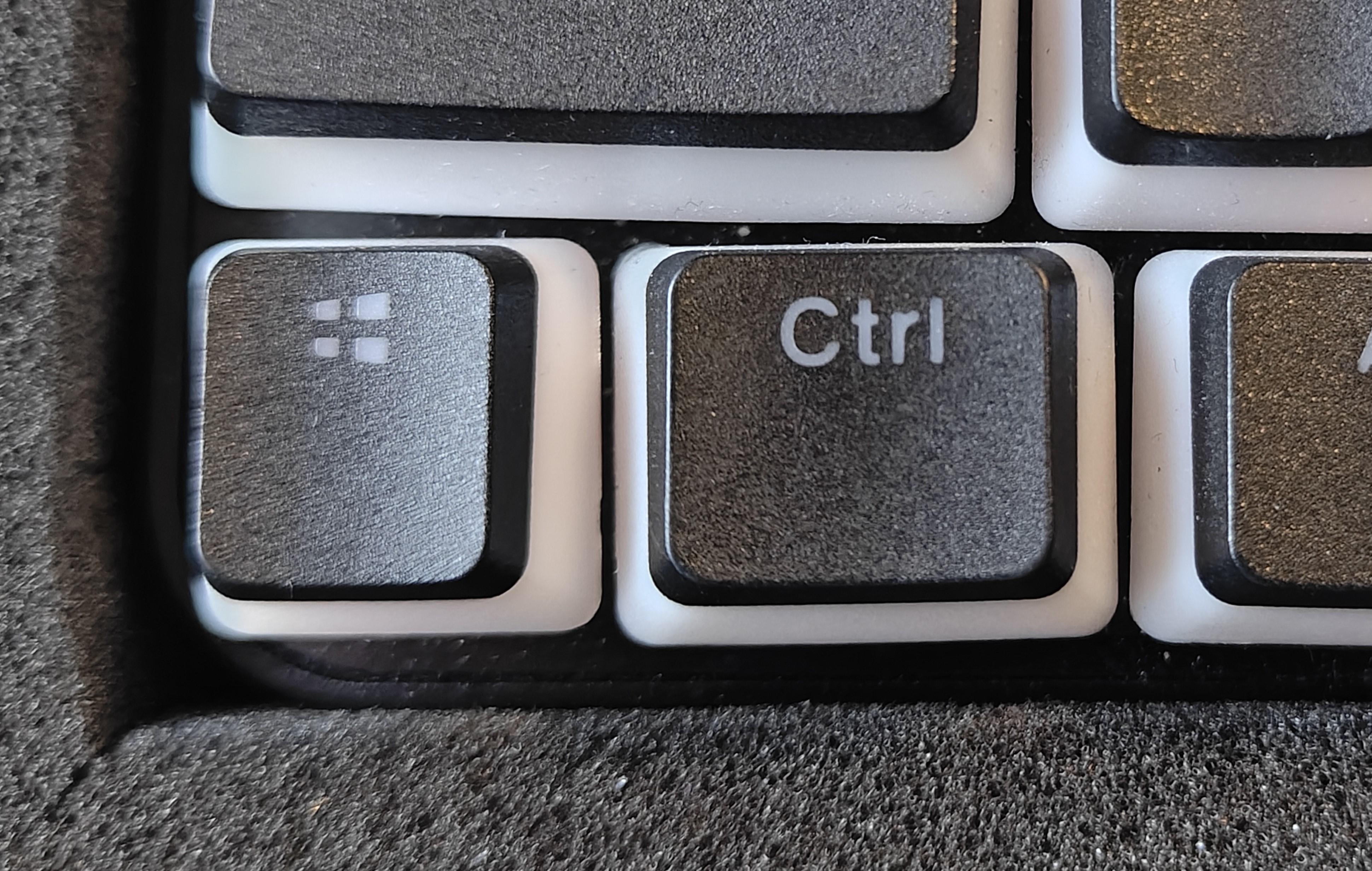
This setting will swap the behavior of the two keys on the bottom-left of the CharaChorder Lite.
Note
This setting is not Lite-specific: the Meta API lists keyboard/command control swap on every CharaChorder device, and it is present in the GTM’s Keyboard menu on a CharaChorder Two running CCOS 3.0.0. What it does on devices without a bottom-left CTRL/GUI pair like the Lite’s has not been checked.
Traditional QWERTY keyboards keep the CTRL key at the bottom left corner of the keyboard with the GUI key (Command key on Mac, Windows key on Windows, Super key on Linux, etc.) to the right of the CTRL key. The CharaChorder Lite has these two keys swapped by default, which some users find odd and difficult to adjust to. A brand new CharaChorder Lite will have the GUI key at the bottom-left corner with the CTRL key to the right of the GUI key.
With this setting, you can effectively swap the two keys’ location at the level of the CCOS so that CTRL is at the bottom-left corner.
This setting has two options: GUI-CTRL and CTRL-GUI. This setting is set to GUI-CTRL by default.
Default Key Mapping:
Key Mapping after swapping:
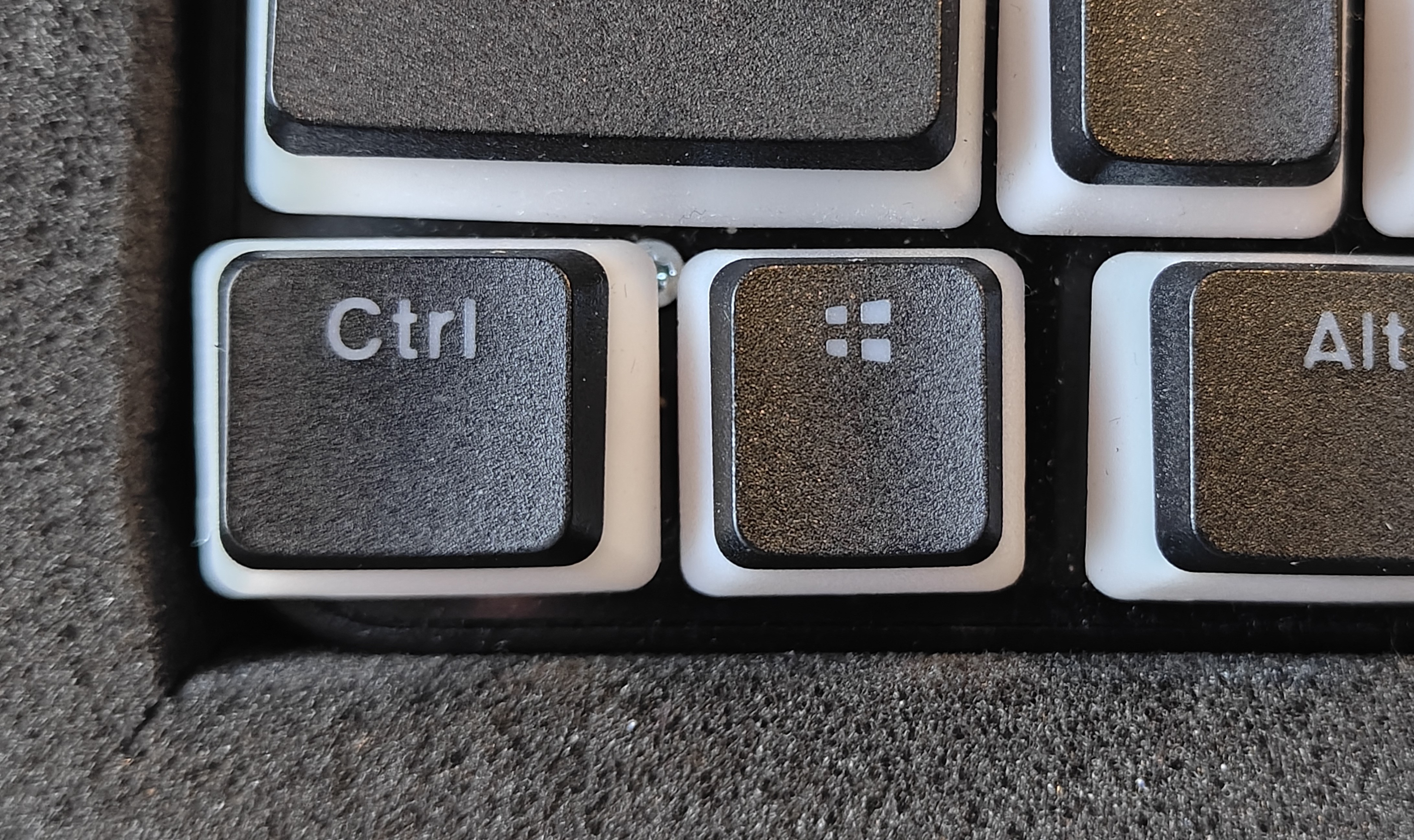
Users who are used to traditional keyboard layouts will want to take advantage of this setting so they don’t have to relearn the new position of the keys.
Mouse
CCOS allows you to use your device as a mouse including functions like scrolling and cursor movement. This section will cover settings that relate to the mouse function on CCOS devices.
Slow Speed
Path: GTM > Mouse > Slow Speed
Slow speed is activated when you use only one of the mouse keys in a single direction (as opposed to using 2 keys in the same direction). Increasing this setting will make your CCOS pointer move faster.
You can find the default settings for each device in the table below:
Device |
Default |
Min. Value |
Max. Value |
Increments |
|---|---|---|---|---|
CharaChorder One |
50 px |
0 px |
255 px |
1 px |
CharaChorder Lite |
50 px |
0 px |
255 px |
1 px |
CharaChorder X |
50 px |
0 px |
255 px |
1 px |
CharaChorder Two |
50 px |
0 px |
255 px |
1 px |
CharaChorder Engine |
50 px |
0 px |
255 px |
1 px |
Master Forge |
50 px |
0 px |
255 px |
1 px |
Fast Speed
Path: GTM > Mouse > Fast Speed
Fast speed is activated when you use two mouse keys in a single direction (as opposed to using only one key in the same direction). Increasing this setting will make your CCOS pointer move faster.
You can find the default settings for each device in the table below:
Device |
Default |
Min. Value |
Max. Value |
Increments |
|---|---|---|---|---|
CharaChorder One |
250 px |
0 px |
2550 px |
10 px |
CharaChorder Lite |
250 px |
0 px |
2550 px |
10 px |
CharaChorder X |
250 px |
0 px |
2550 px |
10 px |
CharaChorder Two |
250 px |
0 px |
2550 px |
10 px |
CharaChorder Engine |
250 px |
0 px |
2550 px |
10 px |
Master Forge |
250 px |
0 px |
2550 px |
10 px |
Scroll Speed
Path: GTM > Mouse > Scroll Speed
Scroll speed refers to the speed at which your CCOS scroll will scroll.
Increasing this setting will make your CCOS scrolling scroll faster.
You can find the default settings for each device in the table below:
Device |
Default |
Min. Value |
Max. Value |
Increments |
|---|---|---|---|---|
CharaChorder One |
2 pg |
0 pg |
255 pg |
1 pg |
CharaChorder Lite |
2 pg |
0 pg |
255 pg |
1 pg |
CharaChorder X |
2 pg |
0 pg |
255 pg |
1 pg |
CharaChorder Two |
2 pg |
0 pg |
255 pg |
1 pg |
CharaChorder Engine |
2 pg |
0 pg |
255 pg |
1 pg |
Master Forge |
2 pg |
0 pg |
255 pg |
1 pg |
Active Mode
Path: GTM > Mouse > Active Mode
Active mode nudges your mouse cursor one pixel every minute or so (not a specific timing). This setting can be used to keep your computer from going to sleep. You might turn this setting off if you notice desktop apps are preventing you from getting mobile notifications (for example on Discord or Microsoft Teams).
Chording
CCOS devices feature the ability to chord. The following settings affect the device’s chording abilities.
Character Only Mode
Path: GTM > Chording > Character Only Mode
This setting is a toggle that disables chording capabilities on CCOS devices. It is off by default and can be enabled in case we don’t want any chording at all. This setting can be useful in cases where we don’t want to accidentally trigger chords unintentionally, such as when gaming.
If your CCOS device suddenly loses its chording ability, it’s a good idea to check if this setting is toggled off.
Press Tolerance
Path: GTM > Chording > Press Tolerance
The press tolerance refers to a window of time in which a chord can be performed, measured in milliseconds (ms). This timer is initiated upon the first “press” action of the first key in a chord and ends once the last key of the chord is pressed, or until the press tolerance runs out, whichever comes first.
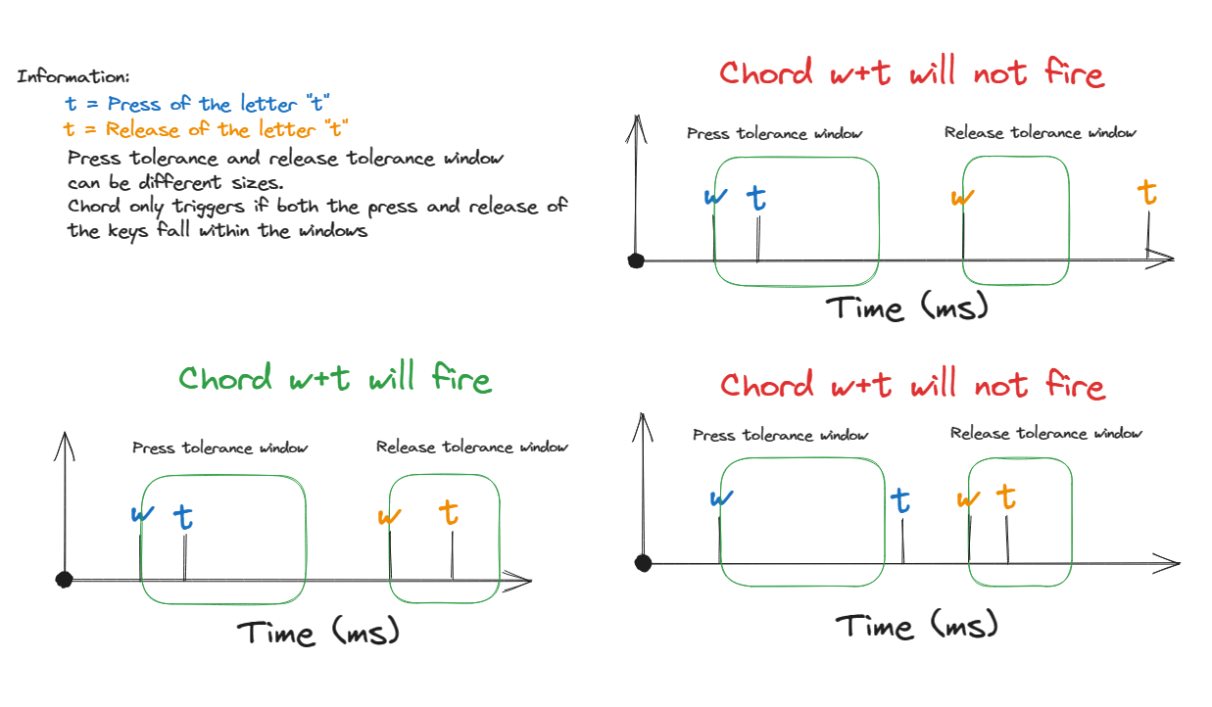
Put simply, increasing the press tolerance (usually, done in conjunction with increasing the release tolerance) makes it easier to perform chords.
Note
The press tolerance scales (increases) according to the number of keys in a chord. The window of time will be bigger with a 6-key chord than with a 3-key chord. This means that, though you might set the tolerance to a specific timing, it will actually be longer than that depending on how many keys are in your chord.
You can increase this setting in order to make that window of time longer and make chording easier.
The downside to having higher values is that you may accidentally trigger chords during normal character entry. Therefore, if you are noticing chords fire unintentionally, it is a good idea to lower this setting along with the release tolerance.
You can find the default settings for each device in the table below:
Device |
Default |
Min. Value |
Max. Value |
Increments |
|---|---|---|---|---|
CharaChorder One |
30 ms |
0 ms |
255 ms |
1 ms |
CharaChorder Lite |
30 ms |
0 ms |
255 ms |
1 ms |
CharaChorder X |
30 ms |
0 ms |
255 ms |
1 ms |
CharaChorder Two |
30 ms |
0 ms |
255 ms |
1 ms |
CharaChorder Engine |
30 ms |
0 ms |
255 ms |
1 ms |
Master Forge |
30 ms |
0 ms |
255 ms |
1 ms |
Release Tolerance
Path: GTM > Chording > Release Tolerance
The release tolerance refers to a window of time in which a chord can be performed, measured in milliseconds (ms). This timer is initiated upon the first “release” action of any key in a chord and ends once the chord is fully performed, or until the release tolerance runs out, whichever comes first.
Put simply, increasing the release tolerance (usually, done in conjunction with increasing the press tolerance) makes it easier to perform chords.
Note
The press tolerance scales (increases) according to the number of keys in a chord. The window of time will be bigger with a 6-key chord than with a 3-key chord. This means that, though you might set the tolerance to a specific timing, it will actually be longer than that depending on how many keys are in your chord.
You can increase this setting in order to make that window of time longer and make chording easier.
The downside to having higher values is that you may accidentally trigger chords during normal character entry. Therefore, if you are noticing chords fire unintentionally, it is a good idea to lower this setting along with the press tolerance.
You can find the default settings for each device in the table below:
Device |
Default |
Min. Value |
Max. Value |
Increments |
|---|---|---|---|---|
CharaChorder One |
25 ms |
0 ms |
255 ms |
1 ms |
CharaChorder Lite |
25 ms |
0 ms |
255 ms |
1 ms |
CharaChorder X |
25 ms |
0 ms |
255 ms |
1 ms |
CharaChorder Two |
25 ms |
0 ms |
255 ms |
1 ms |
CharaChorder Engine |
25 ms |
0 ms |
255 ms |
1 ms |
Master Forge |
25 ms |
0 ms |
255 ms |
1 ms |
Timeout
Path: GTM > Chording > Timeout
This setting will change how long CCOS counts time in order to replace characters that precede a chord.
CCOS devices have a running timer that starts after every single character that is entered in traditional chentry (character entry, i.e. one letter at a time). This timer controls whether or not the next chord that you perform deletes the preceding characters.
This feature allows users to misfire chords, yet be able to correct them by quickly performing the chord correctly, without having to backspace manually to erase the misfired chord. The result is that the timeout will automatically backspace all of the preceding characters (up to the last breaking character) and replace them with the intended chord.
You can adapt this setting to your individual chording style.
Warning
Setting this setting to 0.0 s will result in chords not working at all. They will fire, but they will not automatically erase the chord inputs.
You can find the default settings for each device in the table below:
Device |
Default |
Min. Value |
Max. Value |
Increments |
|---|---|---|---|---|
CharaChorder One |
8 s |
0 s |
25.5 s |
0.1 s |
CharaChorder Lite |
8 s |
0 s |
25.5 s |
0.1 s |
CharaChorder X |
8 s |
0 s |
25.5 s |
0.1 s |
CharaChorder Two |
8 s |
0 s |
25.5 s |
0.1 s |
CharaChorder Engine |
8 s |
0 s |
25.5 s |
0.1 s |
Master Forge |
8 s |
0 s |
25.5 s |
0.1 s |
Arpeggiate
Path: GTM > Chording > Arpeggiate
Arpeggiate actions are timed actions that can modify a chord after the chord is performed. A quick example of this is the use of chord modifiers after you perform the chord. You can read that section for information on how the chord modifiers work.
With arpeggiates enabled, you can chord the word run and then, within the arpeggiate timeout window, press the past tense modifier for the word to be “modified” into its past tense variant; in english, ran.
Arpeggiate On/Off
Path: GTM > Chording > Arpeggiate > Arpeggiate On/Off
This setting will let you toggle the arpeggiate capability ON or OFF.
Some users dislike arpeggiates as, in really fast typing, it may cause unwanted modifications.
Arpeggiate Timeout
Path: GTM > Chording > Arpeggiate > Arpeggiate Timeout
The arpeggiate timeout is a window of time after a chord is performed during which CCOS will expect arpeggiates to be performed. After this timer runs out, CCOS will NO LONGER modify the preceding chord.
A common issue that users may run into while having arpeggiates enabled is the shift key modifying the preceding chord instead of the next key. For this reason, some users lower the arpeggiate timeout to a really low amount of time in order to reduce the possibility of this happening unintentionally.
Compound
Path: GTM > Chording > Compound
Compound chords let you type several chords back to back and have them combined into a single, longer output, provided each one starts within the timeout below.
Compound Timeout
Path: GTM > Chording > Compound > Timeout
The Compound timeout determines if a compound chord succeeds or fails. If the time between the individual chords in a compound chord is shorter than this setting, the individual chords are replaced with the compound chord’s output; if it is longer, the compound fails and the individual chords remain.
You can find the default settings for each device in the table below:
Device |
Default |
Min. Value |
Max. Value |
Increments |
|---|---|---|---|---|
CharaChorder One |
1000 ms |
0 ms |
2550 ms |
10 ms |
CharaChorder Lite |
1000 ms |
0 ms |
2550 ms |
10 ms |
CharaChorder X |
1000 ms |
0 ms |
2550 ms |
10 ms |
CharaChorder Two |
1000 ms |
0 ms |
2550 ms |
10 ms |
CharaChorder Engine |
1000 ms |
0 ms |
2550 ms |
10 ms |
Master Forge |
1000 ms |
0 ms |
2550 ms |
10 ms |
Display
Under this section, you’ll find settings that deal with how your CharaChorder displays certain things.
Version
Path: GTM > Display > Version
Though this is not a setting that can be modified, it’s a useful piece of text that will show you the CCOS version that your CharaChorder is currently on. You can use this to quickly check what version you are running on the fly, anywhere that you can read GTM
Realtime Feedback
Path: GTM > Display > Realtime Feedback
This setting toggles realtime feedback ON or OFF.
Realtime feedback refers to the helpful text like SPURRING_ON, SPURRING_OFF etc., that lets the user know if a certain mode has been activated or deactivated on the CharaChorder device. Since there is no other visual way to know if the chord used to enable or disable certain settings, it is helpful to have these texts pop up as confirmation.
One of these is the startup message: having this setting set to “ON” will result in your device displaying the text “CCOS is ready.” after you have plugged your device into a computer. The startup text will be displayed wherever your cursor was last typing, if that window is active. This setting is useful so that you know when your CharaChorder device is ready to be used, since startup may take a couple of seconds.
However, if you have editable text highlighted when you connect your CharaChorder, this setting will replace that highlighted text with the startup message. Additionally, if there is not a selected window where text may be typed, the key codes that the CharaChorder sends to your computer in order to display the startup message may be interpreted by your computer as actions and may result in unwanted behavior.
Note
This page used to describe a separate Startup toggle here, dependent on
realtime feedback. A CharaChorder Two running CCOS 3.0.0 has no such entry
in the Display menu, and the Meta API has no setting matching it on any
of the 11 device slugs it publishes – unlike, say,
Capslock, which is a real GTM toggle the
API simply does not track. As of CCOS 2.1.0, the standalone Startup toggle
was removed with the introduction of the Instant Boot feature, which allows
for character entry while the chords load in the background. If you would
rather not see the startup message, this setting is now the only known way
to turn it off.
LEDs
Path: GTM > Display > LEDs
Some CCOS devices carry RGB LEDs. The CharaChorder Lite lights the keys of the keyboard from below, and the Master Forge has downward facing LED clusters inside each digitizer. This section contains settings pertaining to those LED lights.
Note
These settings only exist on devices that have LEDs, currently the CharaChorder Lite and the Master Forge. The LEDs are not individually addressable: every LED on a device shares one colour and one brightness. On the Master Forge each half stores its own LED settings, so the two digitizers can be lit in different colours, and the right half has to be configured separately from the left.
The GTM only offers the on/off toggle and the brightness. Colour is set from the Device Manager’s Leds settings.
On/Off
Path: GTM > Display > LEDs > On/Off
Quickly toggle the LEDs on or off with this setting.
Brightness
Path: GTM > Display > LEDs > Brightness
This setting lets you adjust the brightness of the LEDs, from 0, where they are completely off, up to the maximum shown in the table below. It applies to every LED on the device equally.
Note
If you are using a low power USB bank or port, having a high LED brightness may lead to issues with your CharaChorder Lite’s power. If you have issues on your device that seem to keep your CharaChorder Lite from properly powering on or staying on, it may be a good idea to lower this setting.
You can find the default settings for each device in the table below:
Device |
Default |
Min. Value |
Max. Value |
Increments |
|---|---|---|---|---|
CharaChorder Lite |
255 |
0 |
255 |
1 |
Master Forge |
255 |
0 |
255 |
1 |
Resources
Path: GTM > Resources
This section contains links which may be helpful to you. These links include:
Letter |
Item |
Description |
|---|---|---|
A |
About |
|
G |
Get started |
|
D |
Discord |
Invites you to the CharaChorder Discord |
T |
Training |
Opens https://iq-eq.io, our free tool to help people learn to type at the speed of thought |
M |
Message Riley |
Copies Riley Keen (CharaChorder CEO)’s email address to your clipboard |
L |
Learn chords |
Opens The Starter Chord List |
S |
Check system updates |
Opens the CCOS version updates page |