Chords
One of CharaChorder devices’ greatest features is their chording ability. Read this section to learn what chording is and how you can benefit from it on your own CharaChorder.
What are Chords?
A chord is a type of input/output action on a keyboard: you press two or more keys at the same time and release them at the same time, after which a predefined output will replace the originally pressed keys.
By chording, we are able to type one word at a time instead of one letter at a time. It’s even possible to have chords for phrases and entire sentences.
How do I use Chords?
A chord has an input and an output. We will describe what each of those is and how they affect chords on your CharaChorder device below. Throughout this guide, we might use the term “perform” when talking about carrying out a chord.
Chord Input
A chord input is the
combination of keys used in order to get a desired, predetermined
output. For example, we can have a chord that
requires the simultaneous press and release of the keys b and c
to get the output “because”. In chord notation,
we would write that chord input as b+c. Since chord inputs are
performed simultaneously, meaning that all of the keys needed for an
input are pressed and released at the same time, chord inputs are not
order-specific. b+c is the same as c+b.
Chord Output
A chord
output is the predetermined letters, words, phrases and/or actions that
result after performing a chord. If we use the
chord input of b and c and the result is
the word “because”, then the word “because” would be the output. In
chord notation, we would write that chord (the
input and the output) as b+c = because.
Chord Notation
Chord notation is the way that we write chords for CharaChorder devices. It is a writing format that allows us to communicate chords to other users, and to the CharaChorder, without using any descriptions. You can find the different symbols used in chord notation in the table below.
Character Name |
Symbol |
Usage |
|---|---|---|
Plus Operator |
+ |
Used for separating inputs for chorded operations |
Vertical Bar Operator |
| |
Used for separating all sequential operations |
Equal Sign |
= |
Used for separating a chord input from a chord output |
You can read some examples of chords written in chord notation below. You can try these chords on your CharaChorder device!
y+u+o = youk+b+a = backt+o+n+d = don’tw+o+n+d = downc+b = becausep+m+i = important
How do I make Chords?
You can make chords for your CharaChorder using a few different methods which we will discuss below. In order to make a chord, you will have to indicate your desired chord input as well as your desired chord output.
Your CharaChorder device already comes with some chords loaded onto it. These cover some of the most common words in the English language. You can click on the link to see that list in an external tab: Starter Chords.
You can create custom chords on the Device Manager. Additionally, you, can create chords on the go by using impulse chording. Read on for specific instructions on how to do that.
On Device Manager
The CharaChorder Device Manager is our official web based configuration tool designed for CharaChorder devices. On there, you can do a variety of things. You can read all about Device Manager in this section.
The process for adding chords to your CharaChorder is the same on all of our CharaChorder devices. You can add new chords, or import an existing chord library. Read how below.
Adding New Chords on Device Manager
The steps to do this are in the Device Manager documentation.
Impulse chording
Impulse chording is a method of adding chords that doesn’t require anything except your CharaChorder after a space to type in. It allows you to create ‘on the fly’, custom chords which can be spontaneously created anywhere that you can type via the Impulse menu.
The idea of impulse chords is that whenever you come across a word that you don’t have a chord for, you can instantly create one mid-email, mid-discord chat, mid-whatever, without the need to switch windows, import, connect, etc. Just punch in your input and output via the Impulse Menu and then keep typing without skipping a beat. Read below for instructions on how to create an impulse chord on your specific device.
Note: When creating an impulse chord, all keystrokes are recorded as part of the output. If you make a mistake when defining the chord output, trigger escape and start over instead of deleting the input.
Creating an Impulse Chord on the CharaChorder One
Standard process for creating an impulse chord on a CharaChorder One: In short: 1. CHORD INPUT, 2. CALL IMPULSE, 3. TYPE OUTPUT, 4. CONFIRM OUTPUT 5. CONFIRM INPUT
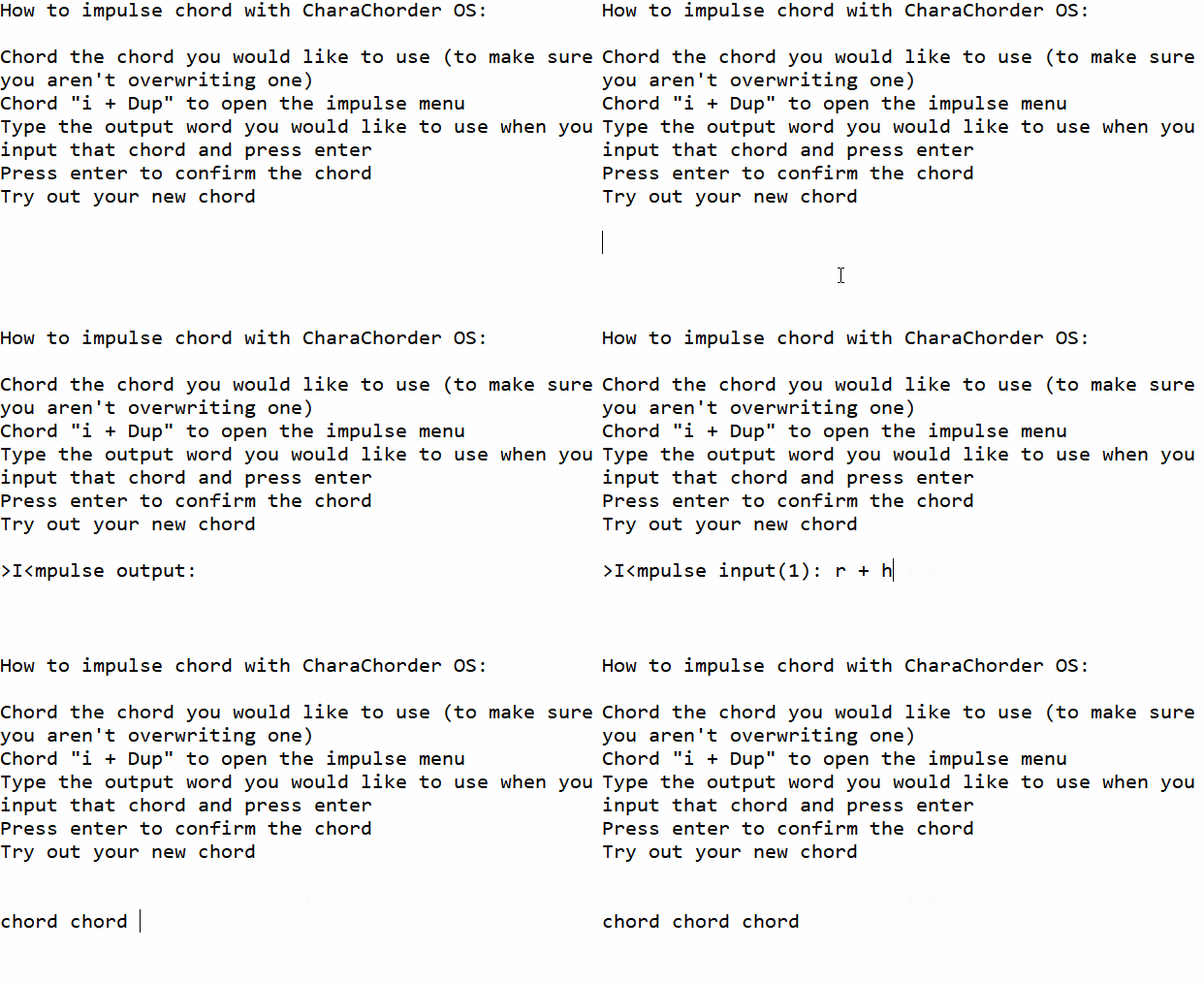
Anywhere that you can see a cursor, chord the input you want (example:
b+u+r+s+t). You will either see a jumble of letters (example: “tsubr”) or you will see a chord which is already programmed to that input. If you continue, any conflicts will be overwritten.Call the impulse command the hard coded chord
i+DUP.Follow the prompt and type your output in character entry mode. (example: >I<mpulse output: burst ).
Press enter to confirm your output.
Verify that the desired input is correct (you will see a confirmation message similar to this: >I<mpulse input: b + r + u + t + s).
If the input is incorrect, perform your desired input at this step. Once the input is the desired input, press enter.
These steps should take 1-3 seconds.
Creating an Impulse Chord on the CharaChorder Lite
Standard process for creating an impulse chord on a CharaChorder Lite: In short: 1. CHORD INPUT, 2. CALL IMPULSE, 3. TYPE OUTPUT, 4. CONFIRM OUTPUT, 5. CONFIRM INPUT
Anywhere that you can see a cursor, chord the input you want (example:
b+u+r+s+t). You will either see a jumble of letters (example: “tsubr”) or you will see a chord which is already programmed to that input. If you continue, any conflicts will be overwritten.Call the impulse command with the hard coded chord
i+DUP.Follow the prompt and type your output in character entry mode. (example: >I<mpulse output: burst ).
Press enter to confirm your output.
Verify that the desired input is correct (you will see a confirmation message similar to this: >I<mpulse input: b + r + u + t + s).
If the input is incorrect, perform your desired input at this step. Once the input is the desired input, press enter.
These steps should take 1-3 seconds.
Creating an Impulse Chord on the CharaChorder X
Standard process for creating an impulse chord on a CharaChorder X: In short: 1. CHORD INPUT, 2. CALL IMPULSE, 3. TYPE OUTPUT, 4. CONFIRM OUTPUT, 5. CONFIRM INPUT
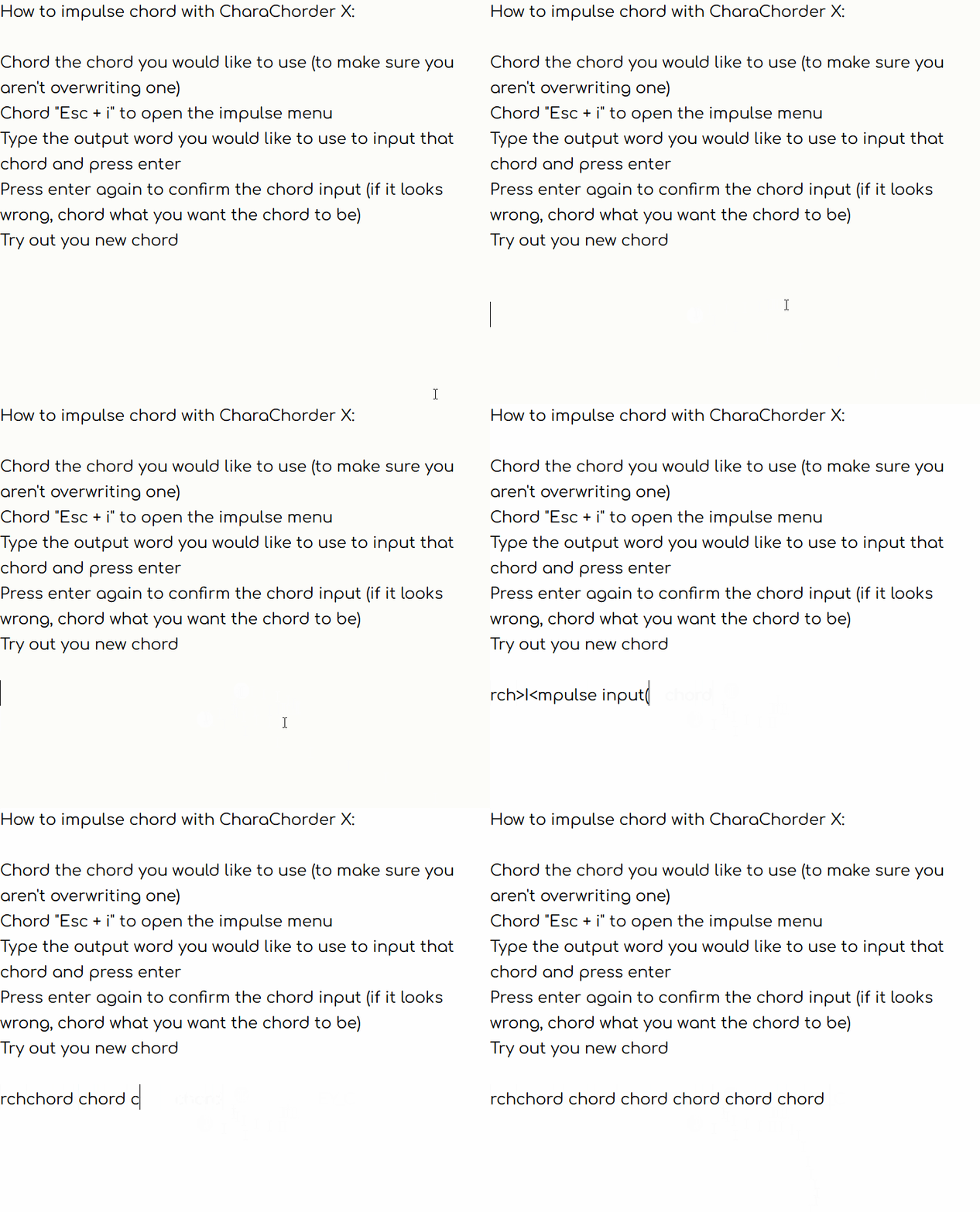
Anywhere that you can see a cursor, chord the input you want (example:
b+u+r+s+t). You will either see a jumble of letters (example: “tsubr”) or you will see a chord which is already programmed to that input. If you continue, any conflicts will be overwritten.Call the impulse command with the hard coded chord
i+ESC.Follow the prompt and type your output in character entry mode. (example: >I<mpulse output: burst ).
Press enter to confirm your output.
Verify that the desired output is correct (you will see a confirmation message similar to this: >I<mpulse input: b + u + r + s + t).
If the input is incorrect, perform your desired input at this step. Once the input is the desired input, press enter.
These steps should take 1-3 seconds
Compound Chords
Multiple chords in a row can have a unique output.
We can create compound chords like these:
websiteandcharachordercan output the url:www.charachorder.com
boatandbigcan output:ship
carandcarcan output:traffic
Note
The second or additional chords have to be pressed within the Compound timeout, by default it’s one second (1000 ms).
Add a compound chord
Currently, compound chords can only be created from the impulse prompt (i+DUP).
First, we decide what the compound chord should output. Then, we choose one or more existing chords, or add new chords to be used as the compound chord’s inputs.
If we want the compound chord output: www.charachorder.com
With chord input 1:
w+b+s+tOutput:
websiteAnd chord input 2:
c+h+a+rOutput:
charachorder
Open the impulse prompt by chording:
i+DUPAt the impulse output prompt, type the compound chord output, one character at a time:
www.charachorder.comPress:
enterAt the impulse input prompt, press the first chord:
w+b+s+timpulse input: w + b + s + tNote
The order of the chord input characters doesn’t matter, they appear in the impulse input prompt in the order they were pressed.
Hold
shiftand pressenterimpulse input: w + b + s + t |Note
The
|(pipe symbol) after the chord input, indicates that it’s waiting for a second chord.Press the second chord:
c+h+a+rimpulse input: w + b + s + t | c + h + a + rPress:
enter
We have added a compound chord:
Now when we chord:
w+b+s+tfollowed (within the Compound timeout) by the chord:
c+h+a+rit outputs:
www.charachorder.com
Note
Compound chords aren’t limited to just two in a row.
Dynamic Libraries
Dynamic Libraries are a way with which you can store multiple different chord libraries on a device. You can switch between the different libraries by using a pre-defined chord. With Dynamic Libraries, you can use the same chord to produce different outputs, depending on what library is currently active.
For example, the chord: r+a+l can output:
reallyin the base libraryalgorithmin a school libraryrealtor@email.comin a work library
t+n+o+e can output:
notein the base libraryEneot of Draconiain a library for Novel writingOnePlusin a library for Cell Phone blogging
Add Dynamic Toggle Chords
To switch between Dynamic libraries, we add Dynamic Toggle Chords by using the device manager’s chord editor: https://charachorder.io/config/chords/
First, we add a Dynamic Toggle that will return us to the base library.
chord:
b+a+l+ioutput:
Add the action: Base Library
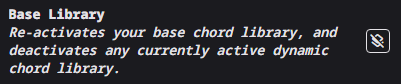
Then type the dynamic library name:
base
Then, we add a Dynamic Toggle for a library used at work.
chord:
w+l+i+boutput:
Add the action: Dynamic Library
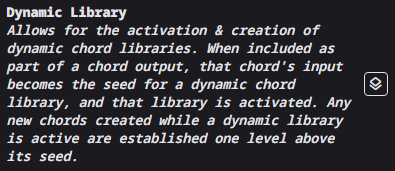
Then type the dynamic library name:
wlib
The Dynamic Toggle chords look like this:
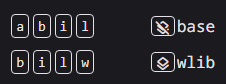
Note
The chords we used in the examples above (b+a+l+i and w+l+i+b) and their outputs (base and wlib) are merely examples; they don’t have to be exactly that. You can make the chord inputs and their outputs whatever you want, as long as you include the dynamic library action in the chord output.
Add a chord in a dynamic library
Switch to the work library, by chording:
w+l+i+bIt switches to the work library and outputs its name in plain text:
wlibYou can ignore the name, erase it or just press
ENTERto continue on a new line. We’ll get rid of the printed library name in the next sectionOpen the impulse chord menu:
i+DUPAt the impulse output prompt, type your desired output:
realtor@email.comPress:
ENTERAt the impulse input prompt, chord:
r+a+lPress:
ENTERNote
Adding a chord in a dynamic library doesn’t overwrite an existing chord on the base library because it adds the Dynamic Toggle chord as a prefix.
This is what the chords look like in the device manager’s chord editor. The impulse prompt added the keys/actions that were pressed:

(2) with a thicker left line, is the left number layer key (left pinky west)
Arrow down with a bottom line, is the action: Press and do not release the next key/action
Arrow up with a thicker right line, is right shift (right pinky west)
2 can be typed on the number layer with either
e(left index south) ort(right index south)Arrow up with a bottom line, is the action: Release the next key/action in the sequence
Arrow up with a thicker right line, is right shift (right pinky west)
The chord works fine:
realtor@email.combut if you want it to look like what it outputs, then you can replace the keys/actions, with an @ symbol, in the device manager’s chord editor: https://charachorder.io
Now, while we’re in the dynamic library:
wlibwhen we chord:
r+a+lit outputs:
realtor@email.com
Switch to the base library by using the base Dynamic Toggle that we created earlier:
b+a+l+iIt switches to the base library and outputs its name:
baseNow, while we’re on the base library:
basewhen we chord:
r+a+lit outputs:
really
Select the dynamic library name automatically
This step isn’t required, but it’s a convenience.
When we switch between dynamic libraries, the Dynamic Toggle chord outputs the library name. It’s an extra step to erase the name manually.
Instead, let’s select the dynamic library name automatically by adding these actions to the end of the Dynamic Toggle chord output.
Note
The actions below are on the same line in the device manager’s chord editor, they are on separate lines here to make them easier to read.
{press_next}{left_shift}
{arrow left}{arrow left}{arrow left}{arrow left}
{release_next}{left_shift}
The number of {arrow left} actions should match the number of
characters in the dynamic library’s name; in this case, we used four characters for both: base and wlib
The base and wlib Dynamic Toggle chords look like this:

Now the library name will be selected automatically.
Pressing the chord: w+l+i+b
Switches to the dynamic library
outputs the library name:
wliband selects the name
Now, it’s easy to erase the name by:
Pressing:
BACKSPACEor typing a character
or pressing a chord